


In our previous guide, we covered three physical tweaks that can dramatically improve your WiFi — router placement, antenna angles, and channel selection. Those fixes address the where and how of your wireless signal. Today we are tackling the what: your router almost certainly broadcasts on two or three different frequency bands simultaneously, and there is a very good chance your phone, laptop, and TV are all connected to the wrong one. Here is what each band actually does, which one you should use for what, and how to check what you are on right now — in plain English, with zero networking jargon.
- 2.4 GHz travels farthest through walls but tops out around 100 Mbps — best for IoT devices, smart home gadgets, and basic browsing where range matters more than speed.
- 5 GHz is the everyday sweet spot: up to 1.3 Gbps with decent range. Use it for streaming 4K video, online gaming, and video calls.
- 6 GHz is a wide-open highway with zero interference from older devices — but its short range means you need to be in the same room as a WiFi 6E or WiFi 7 router to benefit.
- You don't need to pick just one. Modern routers broadcast all three bands simultaneously. Let your devices choose automatically — or assign heavy-use devices to 5/6 GHz and IoT gadgets to 2.4 GHz.
The Three WiFi Bands at a Glance
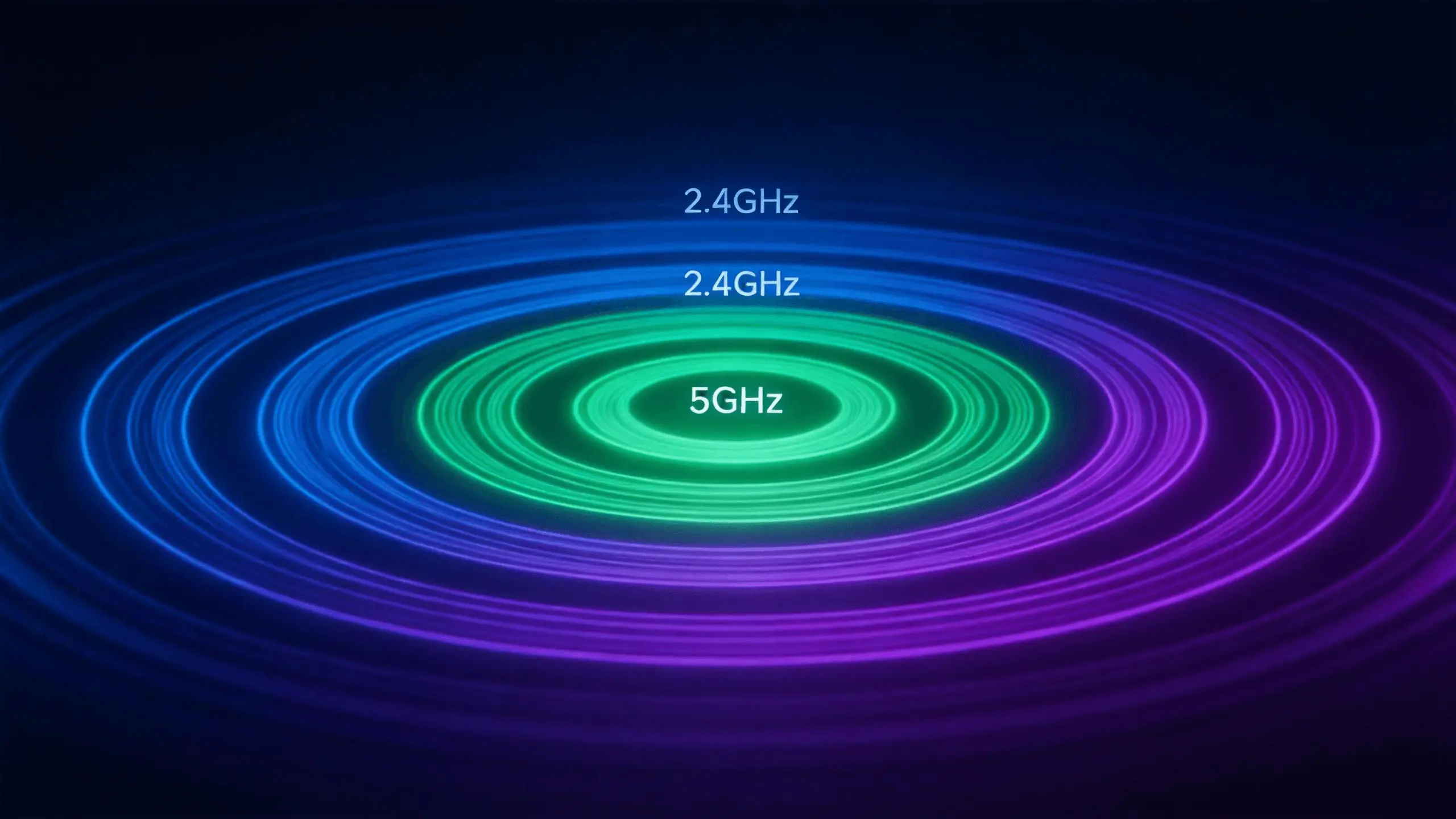
Modern routers broadcast on two or three separate radio frequency bands at the same time. Think of them as different lanes on the same highway — they all go to the same destination, but the experience in each lane is dramatically different. A dual-band router has 2.4 GHz and 5 GHz. A tri-band router adds a second 5 GHz radio or a 6 GHz radio, depending on the model. Here is what each band actually means for your daily internet experience.
2.4 GHz — The Long-Distance Workhorse
The 2.4 GHz band has been around since the earliest days of WiFi, and it remains the most compatible and farthest-reaching option available. Every WiFi device ever manufactured — from the first 802.11b laptop card in 1999 to the latest smartphone — supports 2.4 GHz. Its longer wavelength penetrates walls, floors, and furniture more effectively than higher-frequency signals, which is why it can reach the far bedroom even when the router is in the living room.
But there is a significant tradeoff, and it has only gotten worse over time. 2.4 GHz is crowded. The entire band has space for only three non-overlapping channels — channels 1, 6, and 11 — and every router within a few hundred feet of your home is competing for those same three lanes. On top of that, 2.4 GHz shares its frequencies with microwave ovens, Bluetooth devices, wireless baby monitors, older cordless phones, and even some garage door openers. In a dense apartment building with 20 or 30 visible networks, the 2.4 GHz band is rush hour on a two-lane road.
What 2.4 GHz is actually good for: Smart home devices that do not need speed (security cameras, video doorbells, temperature sensors, smart plugs), devices located far from the router, and older gadgets that simply do not support 5 GHz. If your smart thermostat occasionally needs to send a few bytes of data, 2.4 GHz is perfect. If you are trying to stream 4K video in the bedroom at the far end of the house? Not so much.
5 GHz — The Everyday Sweet Spot
5 GHz is the workhorse of modern WiFi. It offers significantly higher speeds than 2.4 GHz — fast enough to saturate a typical gigabit home internet connection — and it has 24 non-overlapping channels, meaning far less interference from your neighbors. It does not penetrate walls quite as well as 2.4 GHz, but in a typical apartment or single-family home with standard drywall construction, it covers the entire living space without issue.
This is the band that handles 4K Netflix streams, Zoom calls with 20 participants, online gaming sessions, and large file downloads — all simultaneously, across multiple devices. WiFi 6 (802.11ax) on the 5 GHz band introduced technologies like OFDMA and MU-MIMO that allow the router to communicate with many devices at once rather than rapidly switching between them, which dramatically improves performance when your household has phones, laptops, tablets, TVs, and game consoles all online at the same time.
For roughly 80% of people in 2026, a good WiFi 6 router on 5 GHz is the correct answer. It is fast enough for almost anything you will realistically do, and it covers a typical home without the range anxiety of 6 GHz. If you are shopping for a new router and do not have a specific reason to need 6 GHz — which we will get to in a moment — spend your budget on a higher-quality dual-band WiFi 6 model rather than chasing a tri-band 6E model you may never fully utilize.
What 5 GHz is best for: 4K and 8K video streaming, online gaming, video conferencing, large file downloads and uploads, and general everyday internet use for devices within a reasonable distance of the router.
6 GHz — The Empty Highway (With a Catch)
6 GHz is the newest WiFi band, introduced with WiFi 6E in 2021 and carried forward into WiFi 7. It is genuinely impressive technology: blazing fast speeds, near-zero congestion because almost nobody else is using it yet, and an enormous 59 non-overlapping channels. In ideal conditions — same room as the router, no obstacles — 6 GHz can deliver multi-gigabit speeds with latency so low it feels instantaneous.
But the "same room" part is not a suggestion. It is the defining limitation of this band. 6 GHz signals use a shorter wavelength than 5 GHz, which means they carry more data but attenuate faster. A single interior drywall wall can cut a 6 GHz signal's strength by 50% or more. Two walls, and you may lose the connection entirely. This is not a defect — it is physics. The tradeoff for that incredible speed is range, and it is a tradeoff many buyers do not fully understand until they have already unboxed their expensive new router.
Additionally, 6 GHz requires both your router and your client device to support it. Most phones and laptops sold before 2023 do not have 6 GHz capability, and many budget and mid-range devices released in 2024 and 2025 still ship without it. If you buy a WiFi 6E or WiFi 7 router, your three-year-old laptop will continue connecting on 5 GHz exactly as it did before — the new 6 GHz radio simply will not be used by that device. And in some countries, including several major markets, the 6 GHz band has not even been fully approved for unlicensed WiFi use yet.
What 6 GHz is genuinely worth it for: Wireless PC VR gaming, where a dedicated interference-free channel is transformative. Cloud gaming services like GeForce Now and Xbox Cloud Gaming. Apartments or dormitories with dozens of competing 5 GHz networks where congestion is a real, daily problem. Stationary high-bandwidth devices — a gaming PC or streaming setup — located in the same room as the router.
What 6 GHz is not worth it for: General household use in a single-family home with reasonable 5 GHz performance. Devices located more than one room away from the router. Users whose internet plan is 500 Mbps or slower — 5 GHz can already max that out, so 6 GHz adds no practical benefit.
Which Band Should You Actually Use?
The answer depends on your specific situation, not the biggest number on a router box.
- You live in a large house with multiple walls and floors between you and the router. Use 2.4 GHz. It will not win any speed tests, but it will actually reach your bedroom, your basement office, and your backyard. All your smart home devices — cameras, doorbells, thermostats, sensors — are already on 2.4 GHz and functioning perfectly there.
- You stream 4K video, game online, take video calls, and do normal household internet things. Use 5 GHz. It is fast enough for everything on a typical gigabit-or-less internet connection, and it reaches across a standard apartment or house floor without breaking a sweat. This band is the right answer for the vast majority of people reading this article.
- You live in a crowded apartment building where 5 GHz is visibly congested, or you do wireless VR gaming. 6 GHz is exactly what you need. It is the empty highway while everyone else is bumper-to-bumper on 5 GHz. But confirm that both your router and your headset or gaming device support WiFi 6E or WiFi 7 before investing in the upgrade.
Three WiFi Band Myths Worth Busting
Myth #1: "6 GHz is faster, so I should always connect to it."
This is the most common misconception we hear from customers. Speed means nothing if the signal cannot reach you. 6 GHz loses roughly half its strength through a single interior wall. If you are in the living room and your router is in the home office two walls away, 5 GHz will almost certainly deliver better real-world performance — not because 5 GHz is technically faster, but because it reaches you with more of its signal intact. Use the band that arrives strongest, not the one with the biggest number on the spec sheet.
Myth #2: "If I buy a WiFi 7 router, all my devices will instantly be faster."
Your router can be a Formula 1 car, but your phone still tops out at highway speed. The maximum WiFi standard your client device supports is a hard ceiling — a WiFi 6 phone connected to a WiFi 7 router still operates at WiFi 6 speeds. The new router helps — its newer processor, better antennas, and more efficient handling of multiple devices will improve your experience — but your three-year-old laptop is not going to magically get WiFi 7 speeds. When you upgrade, you are buying headroom for future devices, not an instant speed boost for everything you currently own.
Myth #3: "My router automatically picks the best band for each device, so I do not need to think about it."
Band steering and Smart Connect are helpful technologies, but they are not foolproof. In our testing, many consumer routers keep devices parked on 2.4 GHz long after they have moved well within 5 GHz range — sometimes permanently. The router sees a stable 2.4 GHz connection and decides not to risk disrupting it by forcing a band switch, even though the device would perform far better on 5 GHz. Take 30 seconds right now and check your phone's WiFi settings — if you see separate network names like "MyWiFi" and "MyWiFi_5G" broadcasting from your router, band steering is not enabled at all, and your devices might be trapped on the slower band indefinitely.
How to Check What You Are Using Right Now
On an iPhone: There is no built-in way to see which band you are connected to. Apple hides this information from the WiFi settings screen by design. However, you can download a free app like AirPort Utility (yes, Apple's own app), enable "WiFi Scanner" in the iOS Settings app under AirPort Utility, and it will show you the channel and band of every nearby network — including yours.
On an Android phone: Open Settings → Wi-Fi, tap the gear icon or the network name you are currently connected to, and look for "Frequency" or "Band." It will say either 2.4 GHz or 5 GHz. If it says 2.4 GHz and you are sitting within 20 feet of your router with no walls in between, you have been running on the slow lane.
On a Windows laptop: Open Command Prompt and type netsh wlan show interfaces. Look for the "Radio type" and "Channel" lines. Channel 1 through 14 is 2.4 GHz. Channel 36 through 165 is 5 GHz. Anything above channel 165 is 6 GHz.
On a Mac: Hold the Option key and click the WiFi icon in the menu bar. You will see detailed information about your current connection, including the channel and band.
On your router's admin page: This is the most important step. Log into your router (usually 192.168.0.1 or 192.168.1.1 in your browser's address bar), navigate to Wireless Settings, and look for a setting called Band Steering, Smart Connect, or Whole Home WiFi. If this setting exists and is turned off, turn it on. This merges your 2.4 GHz and 5 GHz networks into a single WiFi name and allows the router to automatically move each device to the best available band based on signal strength and capability. If your router does not have this setting at all, it is treating each band as a completely separate network — which means you have to manually choose which one to connect to, every time, on every device.
Quick tip: If your WiFi network name shows up twice on your phone — for example, "SmithFamilyWiFi" and "SmithFamilyWiFi_5G" — your router is broadcasting the bands as separate networks with no band steering. Log into the router and enable Smart Connect or Band Steering. One network name, all available bands, and the router handles the rest. Your devices will thank you.
The Honest Truth
For most households in 2026, a quality dual-band WiFi 6 router running on 5 GHz handles absolutely everything — 4K streaming, online gaming, video calls with colleagues, and dozens of connected devices all running simultaneously. You do not need to chase the newest WiFi standard, the highest number, or the priciest model on the shelf. The marketing will tell you otherwise. The marketing is wrong.
What you actually need is a router positioned in the right spot, with antennas angled correctly for your floor plan, broadcasting on a clean channel, with band steering enabled so each device always gets the best connection available. Get those fundamentals right, and your WiFi will be fast enough and reliable enough that you stop thinking about it entirely — which is the real goal. Nobody should have to think about their router. It should just work.
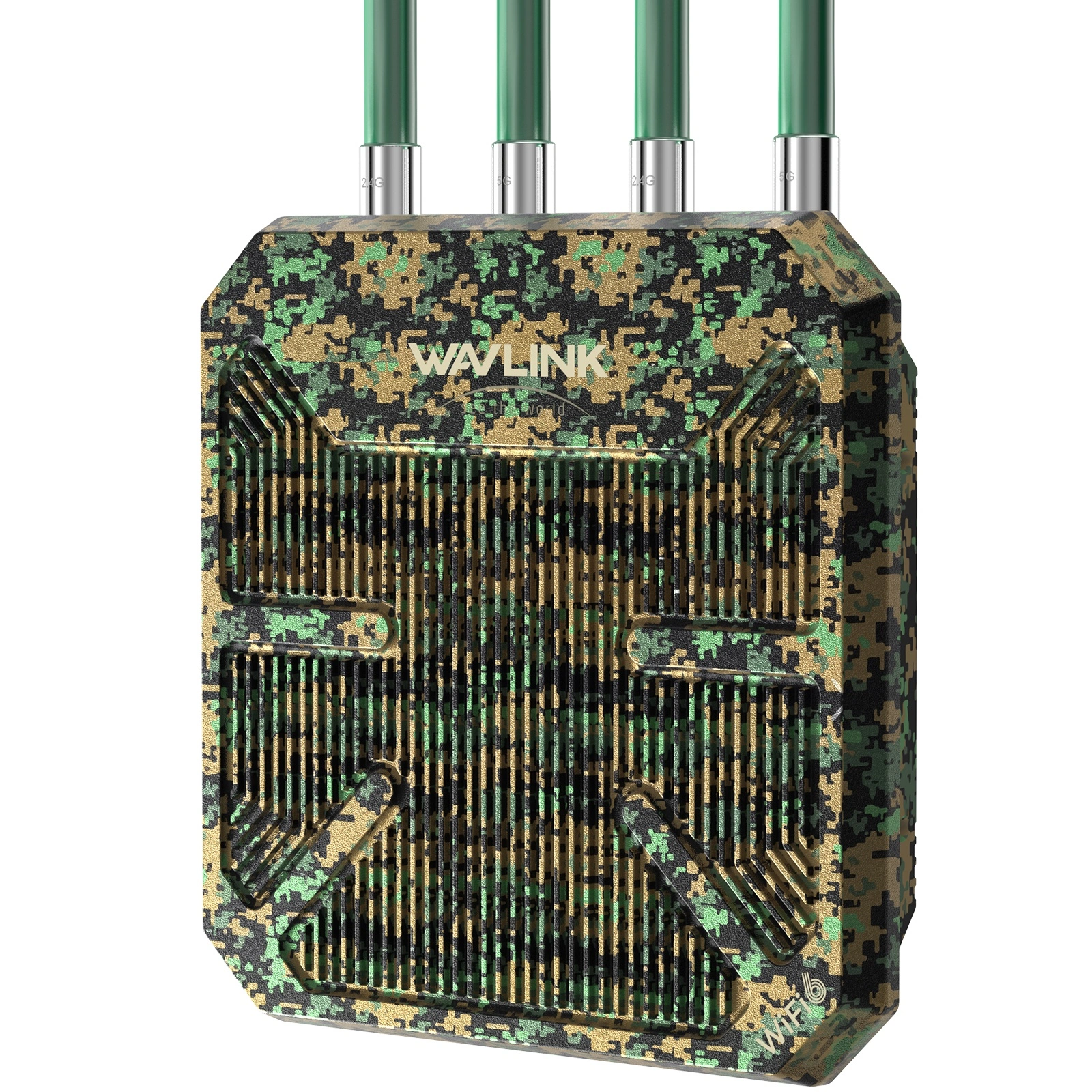
If you have worked through the free tweaks from our previous guide and the band selection advice in this article, and you are still dealing with persistent dead zones or slowdowns, it may genuinely be time for a hardware upgrade. Browse our WiFi 6 routers — designed for whole-home coverage with smart band steering, automatic channel optimization, and MU-MIMO to handle all your devices simultaneously. For larger homes with multiple floors, a WAVLINK Mesh WiFi system uses multiple nodes working as a single seamless network to eliminate dead zones entirely.
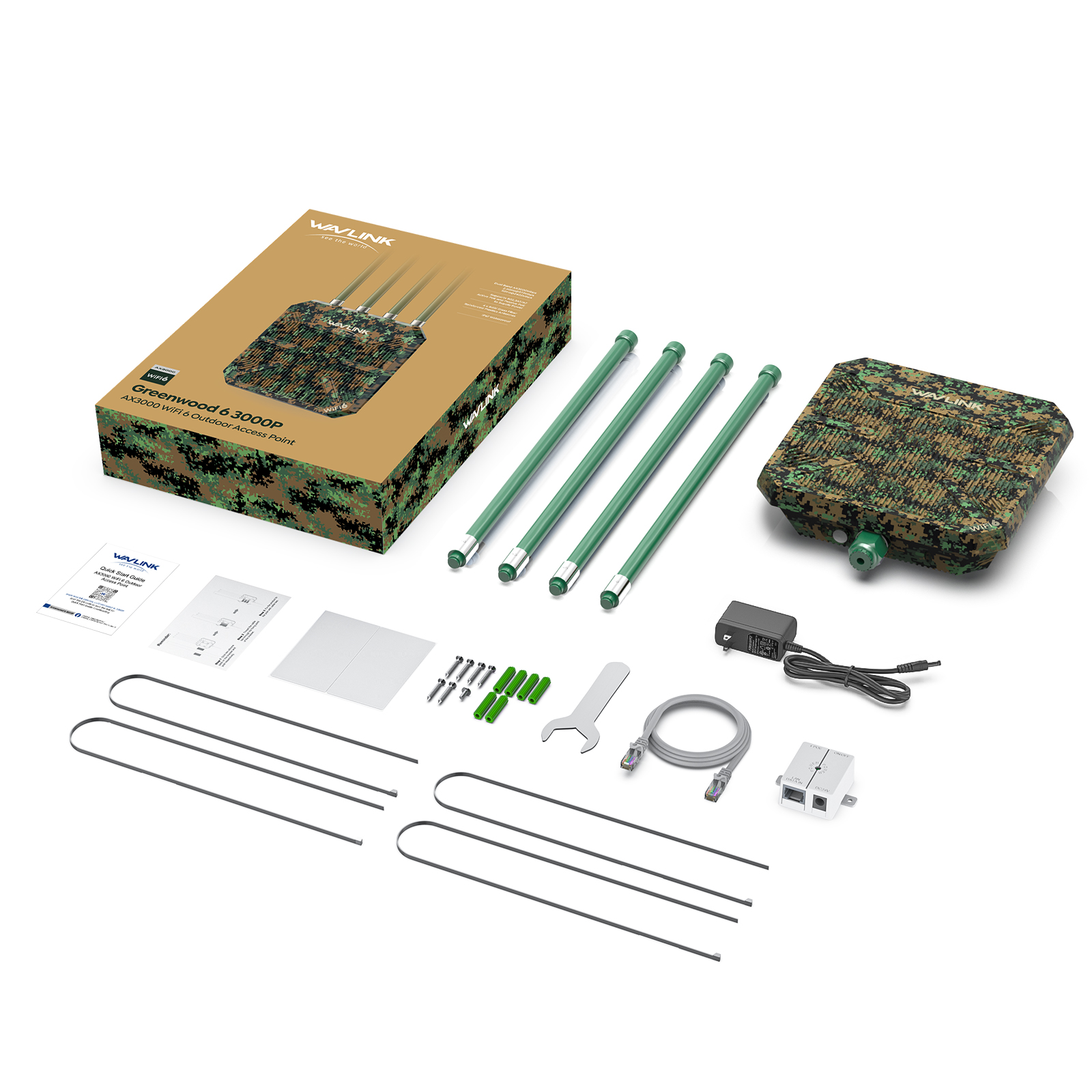
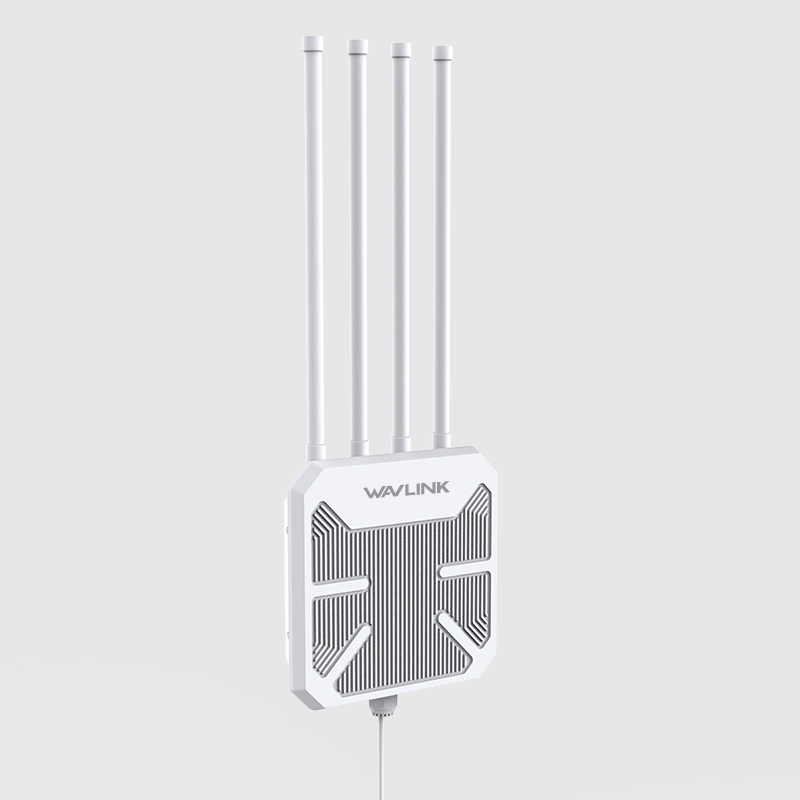
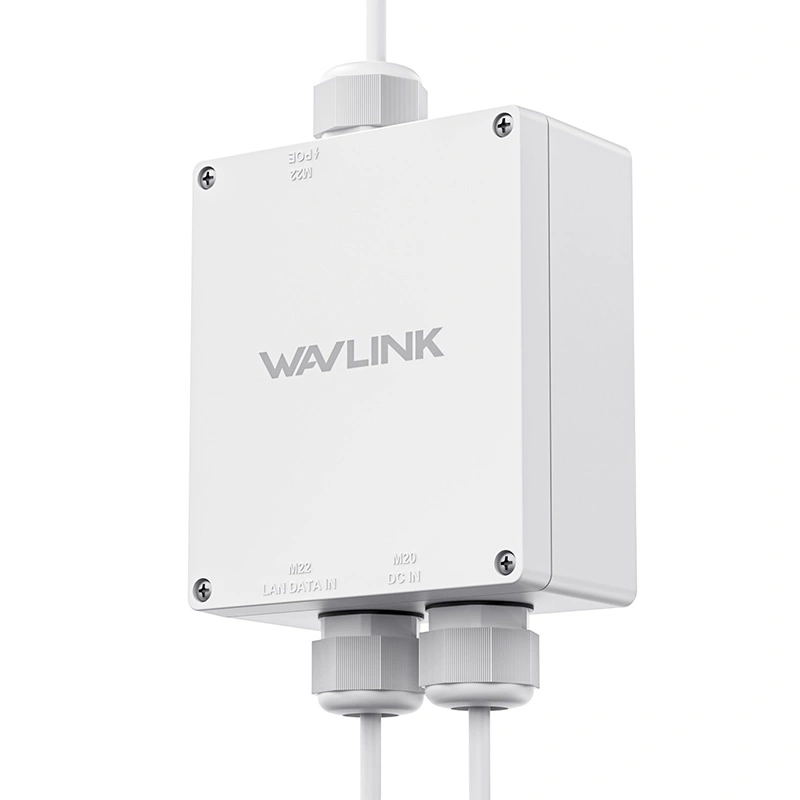
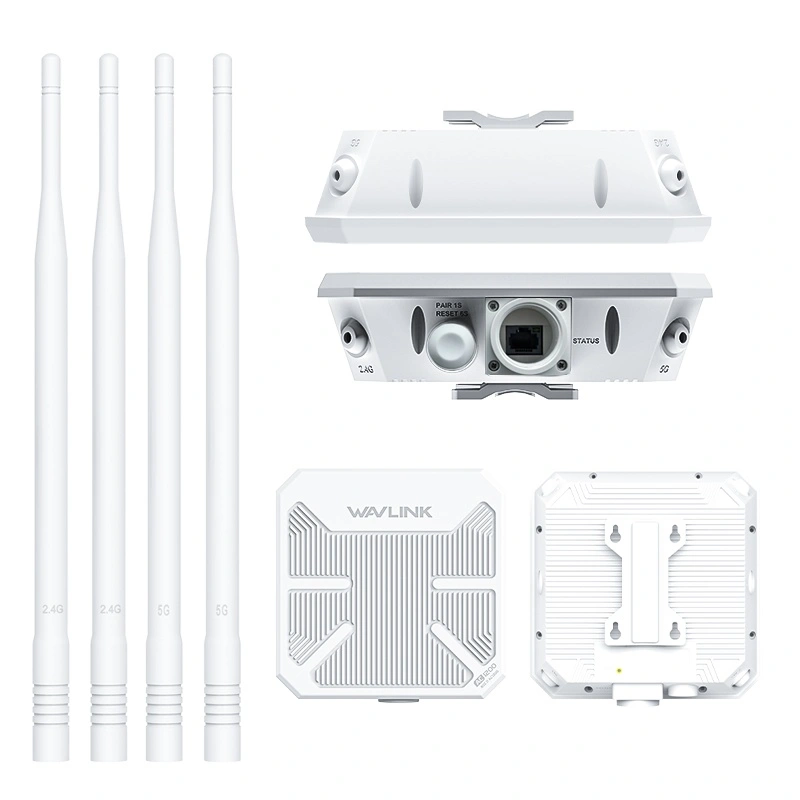
If you're setting up an outdoor access point, we have a full
installation walkthrough with waterproofing tips most tutorials skip →
WAVLINK serves over 2 million families in 170+ countries. Every recommendation in this guide is based on real-world testing in real homes — across real construction materials, with real interference from real neighbors. We do not test in an empty lab, because your house is not an empty lab.
Frequently Asked Questions
What is the difference between 2.4 GHz, 5 GHz, and 6 GHz WiFi?
2.4GHz offers the longest range and best wall penetration but is the slowest and most congested, with only 3 non-overlapping channels shared with microwaves, Bluetooth, and your neighbors. 5GHz is significantly faster, has 24 channels, and handles 4K streaming and online gaming comfortably — for about 80% of households in 2026, this is still the right answer. 6GHz is the newest band, blazing fast with 59 wide-open channels and near-zero interference, but it barely penetrates walls and requires both a WiFi 6E or WiFi 7 router and a compatible device to use at all.
Is 6GHz WiFi better than 5GHz?
It depends entirely on where you are relative to your router. In the same room, 6GHz is incredible — multi-gigabit speeds with no congestion. But 6GHz loses roughly half its signal strength through a single drywall partition. Two rooms away, a 5GHz connection will usually deliver better real-world performance because the signal actually reaches you intact. Speed means nothing if the signal cannot get there. For most people, a good WiFi 6 router on 5GHz is the smarter investment.
Does upgrading to a WiFi 7 router make all my devices faster?
Not automatically. Your router can support the latest WiFi 7 standard, but each device connects at whatever standard its own wireless chip supports. A three-year-old laptop with WiFi 6 will still operate at WiFi 6 speeds when connected to a WiFi 7 router. The new router does help — its processor is faster, its antennas are better, and it handles many simultaneous devices more efficiently — but it is not a magic speed boost for every gadget in your house. Think of it as buying headroom for future devices rather than an instant upgrade for everything you currently own.
How do I check which WiFi band my phone is currently using?
It varies by platform. On Android: Settings > Wi-Fi, tap the gear icon next to your connected network, and look for "Frequency" or "Band." On iPhone: Apple hides this information by default. Download the free AirPort Utility app, then go to iOS Settings > AirPort Utility and enable "Wi-Fi Scanner" — it will show every nearby network and its band. On Windows: open Command Prompt and run netsh wlan show interfaces — the Radio Type and Channel lines tell you the band. On Mac: hold the Option key and click the Wi-Fi icon in the menu bar for detailed diagnostics. If your phone says 2.4 GHz and you are sitting 10 feet from your router, you have been stuck on the slow lane.
Should I keep my 2.4GHz and 5GHz networks separate, or combine them under one name?
Combine them under a single Wi-Fi name. If you can see both "MyWiFi" and "MyWiFi_5G" in your network list, your router is broadcasting each band as a completely separate network — which means your phone might stay connected to the slower 2.4GHz band indefinitely, even when you are sitting right next to the router. Log into your router's admin page (usually 192.168.0.1 or 192.168.1.1), find the setting labeled Band Steering, Smart Connect, or Whole Home WiFi, and enable it. This merges both bands under one network name and lets the router automatically move each device to the best available band based on real-time signal conditions.