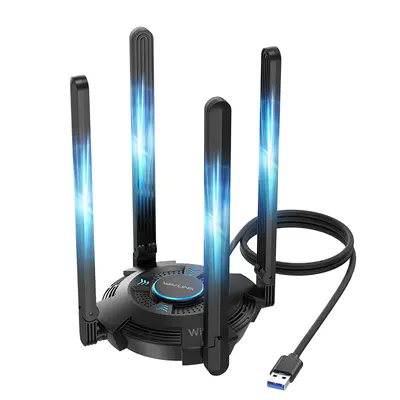
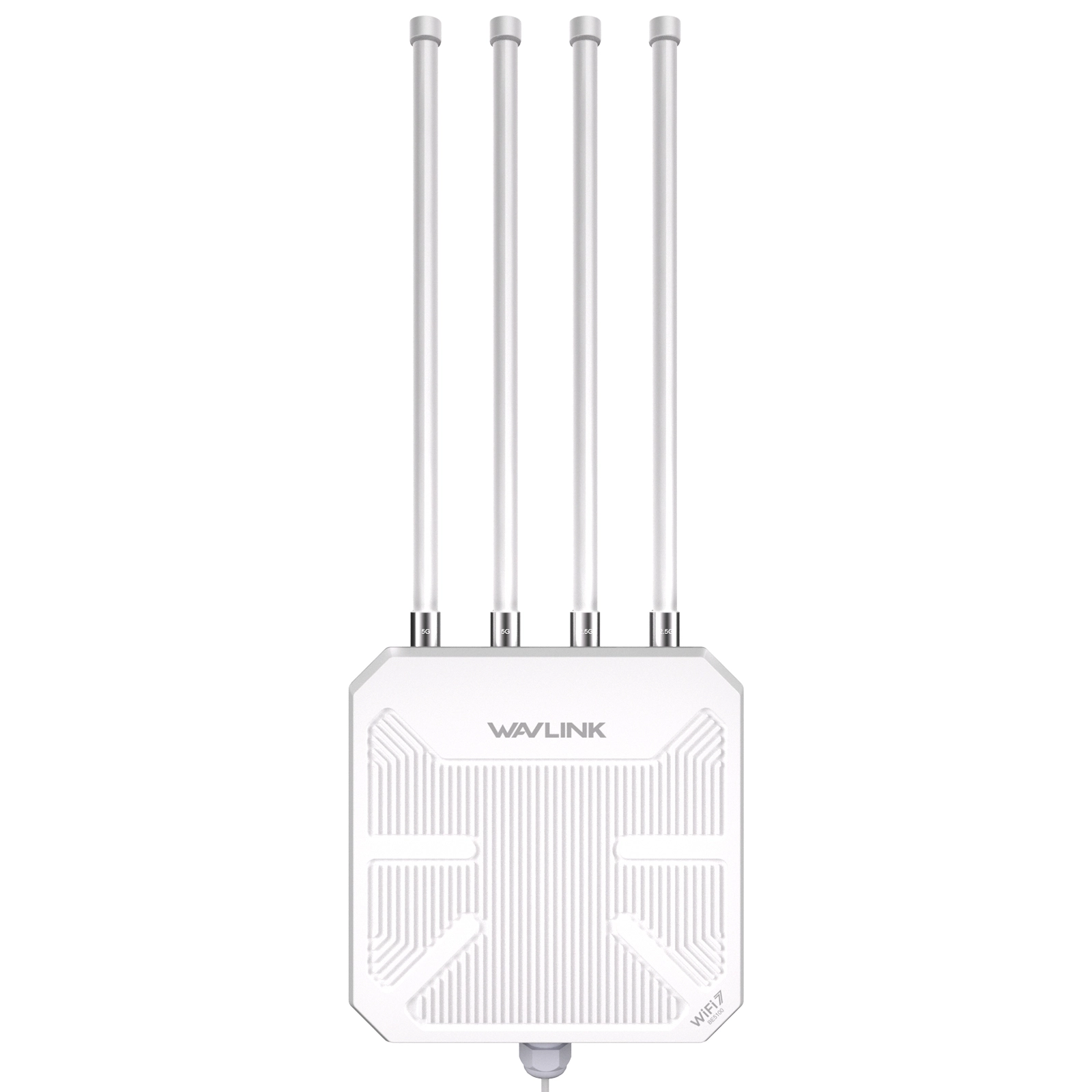
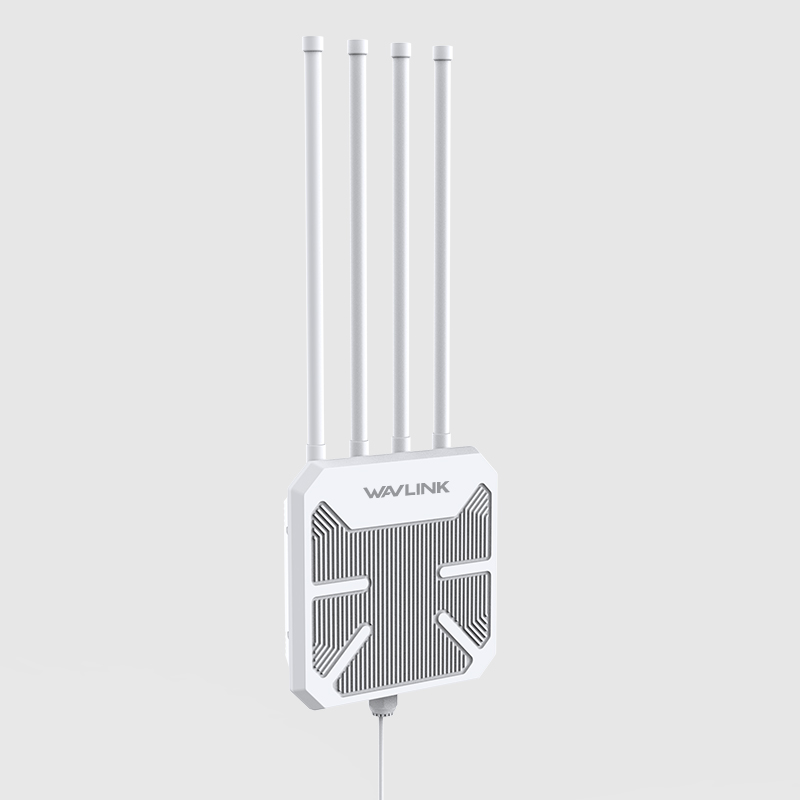

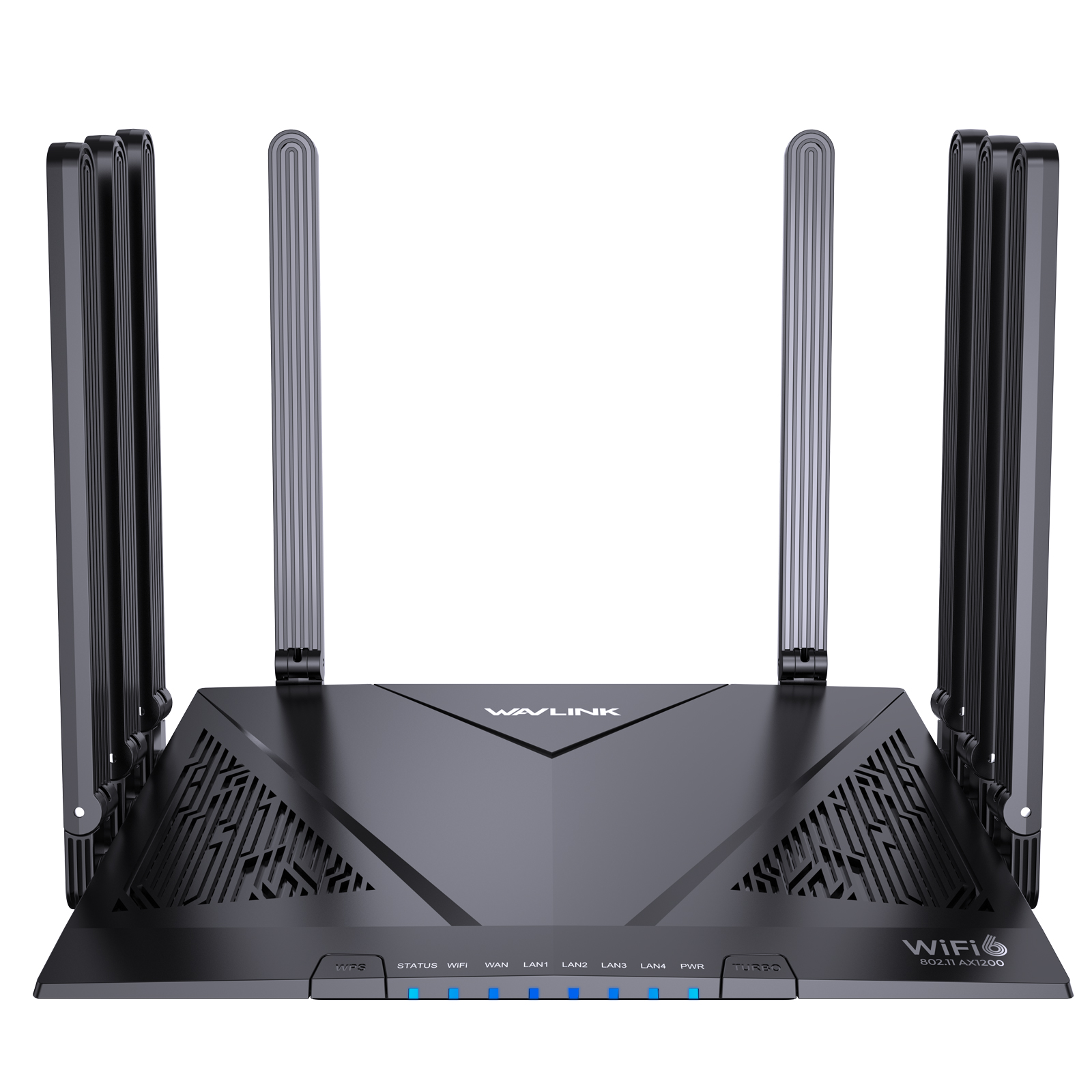
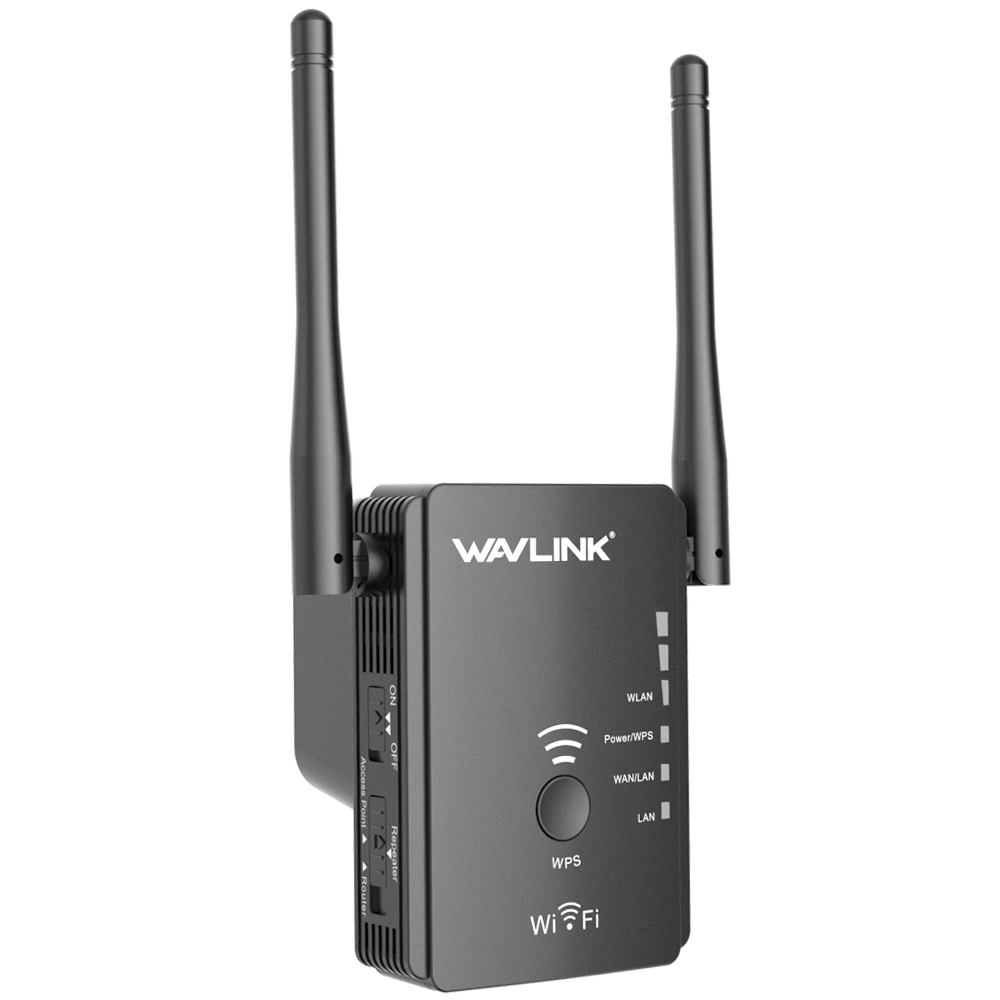

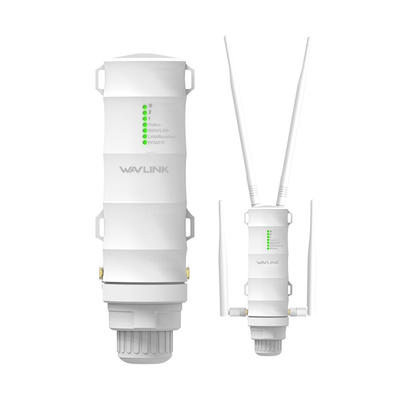
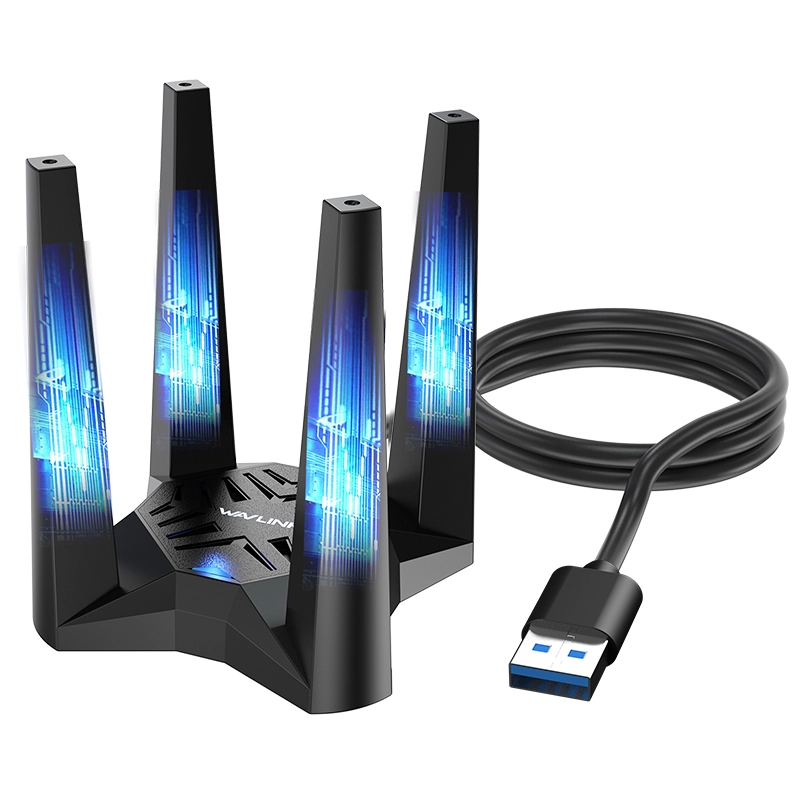
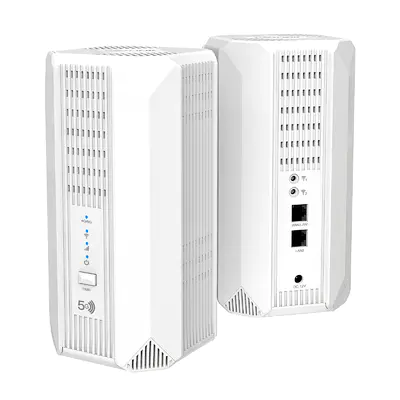
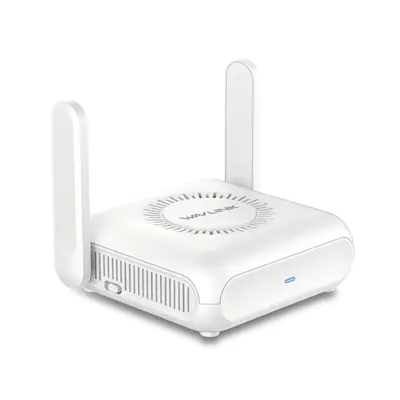
Let's be real: few things are more frustrating than that spinning circle of doom when you're trying to stream the big game in the backyard, video call from the bedroom, or just scroll peacefully on the patio. WiFi dead zones are the modern-day equivalent of a dropped call – pure agony. Enter the unsung hero: the WiFi extender (sometimes called a WiFi repeater or booster). But how do these magical little boxes actually work? And more importantly, how can you use one to finally get reliable internet in every corner of your home? Grab a coffee, settle in, and let’s demystify this tech lifesaver.
1. What the Heck Is a WiFi Extender? (It's Not Magic, But Close)
Imagine your home WiFi router is like a loudspeaker in your living room. It broadcasts your internet signal ("Hey! Internet over here!"). The sound (signal) is great right next to it, okay in the kitchen, faint in the bedroom, and completely inaudible in the garage or backyard. A WiFi extender is like placing another loudspeaker in your hallway. It hears the signal from the living room speaker ("Internet over here!"), then repeats it, boosting it further down the hall ("Yep! Internet over here too!").
In tech terms:
- Listen: The extender connects wirelessly to your existing home WiFi network broadcast by your main router. It "hears" the signal.
- Boost: It takes that signal it just received, amplifies it (makes it stronger).
- Rebroadcast: It then transmits this boosted signal outwards, effectively creating a new network bubble further away from your router.
- Connect: Your devices (phone, laptop, smart TV) connect to this new bubble the extender creates, giving them a stronger signal than they could get directly from the far-away main router.
Key Things to Know:
- It's a Repeater: That's why they're often called WiFi Repeaters. They literally repeat what they hear.
- It Creates a New Network: Usually, your extender's network will have a slightly different name (SSID). Often, it's your original network name with "_EXT" or "_5GEXT" added. Some newer models offer "seamless roaming" with the same name, but the underlying principle is the same.
- It Needs Good Reception Itself: This is CRUCIAL. A WiFi extender MUST be placed where it still gets a strong, reliable signal from your main router. Think of it like a relay runner. If the first runner (your router) drops the baton (signal) before handing it off to the second runner (the extender), the race fails. Place it too far away initially, and it just amplifies a weak or non-existent signal – useless. The sweet spot is halfway between your router and the dead zone.
2. Under the Hood: How WiFi Extenders Actually Pull Off This Trick
Okay, so it listens and rebroadcasts. But how does it really work without causing chaos?
- Dual Radios (Usually): Most decent extenders have at least two radios (think of them as tiny antennas inside):
- Radio 1: Dedicated to communicating with your main router. This one listens and receives.
- Radio 2: Dedicated to communicating with your devices (phone, laptop). This one broadcasts the boosted signal.
- Why Two? Imagine trying to talk on the phone and listen to someone in the room simultaneously on the same ear. It's messy! Two radios let the extender efficiently handle traffic to the router and from your devices without creating a huge bottleneck. Cheaper single-radio extenders have to constantly switch modes, which can significantly slow down your connection – avoid these if possible!
- The "Half-Duplex" Limitation: Even with two radios, there's a catch. Because the extender is receiving data from your device via Radio 2, then has to send it to the router via Radio 1 (and vice versa for data coming from the internet), the maximum speed you'll get when connected to the extender is roughly HALF of what the extender itself gets from the main router. If the extender gets 100 Mbps from the router, devices connected to it might max out around 50 Mbps. This is the fundamental trade-off for convenience.
- The Connection Process (Simplified):
- Your phone wants to load a cat video.
- Your phone sends the request to the WiFi extender (via Radio 2).
- The extender receives the request and passes it internally.
- The extender sends the request to your main router via Radio 1.
- Your router sends the request out to the internet.
- The cat video data comes back to your router.
- Your router sends the data to the extender (via Radio 1).
- The extender receives the data and passes it internally.
- The extender sends the cat video data to your phone (via Radio 2).
- You see adorable kittens. Success!
3. Plug & Pray? A Step-by-Step Guide to Using Your WiFi Extender (Without Tears)
Buying the extender is step one. Setting it up correctly is where the battle is won or lost. Don't worry, it's usually straightforward:
-
Location, Location, Location (The Golden Rule!):
- Unplug the extender from its box. DO NOT plug it into the dead zone yet!
- Plug it into an electrical outlet roughly halfway between your main router and the area where you need better coverage. It needs to be in an area where your phone or laptop currently gets a decent WiFi signal (2 bars or more is usually a good minimum). Think of it like finding a spot with good cell reception for the extender itself. A hallway, near the top/bottom of stairs, or just inside the room before the signal drops hard.
-
Power Up & Initiate Setup:
- Plug the extender in. Wait for its lights to settle (usually 1-2 minutes).
- Method A (WPS Button - Easiest if available):
- Press the WPS button on your main router. The WPS light should start blinking.
- Within 2 minutes, press the WPS button on your extender. Wait. The lights will usually blink like crazy and then settle, often with a solid light indicating a good connection to the router.
- Method B (Web Browser - More Control):
- Grab your phone, tablet, or laptop.
- Look at the extender's label or manual. Find its default WiFi network name (SSID) – something like "NETGEAR_EXT" or "TP-Link_Extender_XXXX" or “WAVLINK_EXT”.
- Connect your device to that temporary extender network.
- A setup page should automatically pop up in your web browser. If not, try typing
mywifiext.net,tplinkrepeater.net, or192.168.1.1/192.168.0.1(check your manual). - Follow the on-screen wizard. It will scan for nearby WiFi networks. Select YOUR HOME NETWORK.
- Enter your home WiFi network's password EXACTLY. This is critical! The extender needs this to connect to your router.
- The wizard will often then ask you to name your extended network. You can usually:
- Use the Same Name (SSID): Best for "seamless" roaming (your device might switch automatically, but sometimes it clings stubbornly). Requires devices that support fast roaming standards (802.11r/k/v) for best results.
- Use a Different Name (e.g., MyNetwork_EXT): This is often simpler. You manually switch devices to this network when you go to the dead zone area. Avoids potential device confusion.
- Create a password for the extender's admin settings (write this down!).
- Finish the wizard. The extender will reboot.
-
The All-Important Placement Test:
- DO NOT MOVE THE EXTENDER YET. After setup, wait a few minutes. Grab your phone or laptop.
- Open your WiFi settings. You should now see your extended network (either the same name as your main or the new one you set).
- Connect to this extended network while standing near the extender.
- Run a speed test (use apps like Speedtest.net by Ookla or Fast.com). Note the results.
- Now, walk to the actual dead zone where you want coverage. Run another speed test.
- Was it decent? Success! Proceed to step 4.
- Was it still terrible? The extender itself isn't getting a strong enough signal from the router. Move it closer to the router (e.g., a few feet or a room back), plug it back in, wait, reconnect to its network, and test again in the dead zone. Repeat until you find a spot where the dead zone speed is acceptable. Finding this optimal middle ground is key!
-
Final Installation:
- Once you've found the magic spot via testing, unplug the extender and plug it back in permanently at that outlet.
- Double-check the connection/signal lights on the extender (consult its manual) to ensure it looks healthy.
-
Connecting Your Devices:
- If you used a different name for the extended network, simply connect your devices (phone, smart TV, laptop) to that new network name when they are in the extended coverage area. Use the password you set during setup (usually the same as your main WiFi password).
- If you used the same name, your devices should automatically try to connect to the strongest signal (router or extender). In practice, devices can be lazy. If a device seems stuck on a weak signal, try briefly turning its WiFi off and on again to force it to reconnect to the stronger source.
Pro Tip: Many extenders come with signal strength indicator lights. Use these! When first placing it, watch the light indicating connection to the router – you want it showing a "Good" or "Excellent" signal.
4. Maximize Your Mojo: Getting the Best Performance from Your Extender
Simply plugging it in isn't always enough. Squeeze every drop of WiFi goodness out of your extender:
- The "Half-Duplex" Reality Check: Remember the speed cut? Don't expect gigabit speeds in the backyard if your extender is only getting a medium signal from the router. Manage expectations. For web browsing and email, even 10-20 Mbps via the extender is fine. For HD/4K streaming, you'll want significantly more.
- Minimize Interference:
- Avoid Physical Obstacles: Don't tuck the extender behind a thick metal filing cabinet or inside a closed cabinet. Place it out in the open if possible.
- Distance from Other Electronics: Keep the extender several feet away from cordless phones, baby monitors, microwave ovens, Bluetooth speakers, or large appliances. These can emit signals that interfere with WiFi.
- WiFi Congestion: In crowded apartment buildings, everyone's WiFi fights for space. Use your router's admin page or a WiFi analyzer app to find the least crowded channel for your network bands (2.4GHz and 5GHz). Set your router and extender to use these cleaner channels.
- Use 5GHz Where Possible (But Know the Limits):
- 5GHz: Faster speeds, less interference (usually), but shorter range and struggles more with walls/floors.
- 2.4GHz: Slower speeds, more prone to interference, but much better range and wall penetration.
- Strategy: Connect the extender to your router using the strongest possible band (often 5GHz is faster if the extender is close enough to get a good 5GHz signal). Your extended network can then broadcast both 2.4GHz (for better range in the dead zone) and 5GHz (for faster speeds closer to the extender). Connect your devices accordingly – use 5GHz near the extender for streaming, use 2.4GHz for devices further out or needing stability.
- Consider Wired Backhaul (If You Have Ethernet): This is the game-changer. Some higher-end extenders (often called Mesh WiFi Nodes) have an Ethernet port. If you can run an Ethernet cable from your main router directly to the extender's location, plug it in! This bypasses the wireless repeating step entirely. The extender connects to the router via the cable (super fast and reliable), then broadcasts WiFi locally. This eliminates the "half-duplex" speed loss and provides much better performance. If you have the ability to run a cable (even along baseboards temporarily), this is the ultimate solution for performance.
5. The Million-Dollar Question: How Far Can WiFi Extenders Really Reach?
Ah, the big promise: "Extends WiFi up to 10,000 square feet!" Hold on. These claims are like car MPG ratings – achieved in perfect laboratory conditions that don't reflect reality.
The cold, hard truth about WiFi extender range:
- It Depends (Massively!) on Your Environment: This is the biggest factor by far.
- Building Materials: Drywall is relatively WiFi-friendly. Brick, concrete, stone, metal studs, and especially thick plaster walls are WiFi killers. Signal can drop significantly just passing through one thick wall.
- Layout: Open floor plans are ideal. Multiple floors, long hallways, and lots of small rooms create more obstacles.
- Interference: Appliances, other electronics, and neighboring WiFi networks (especially in apartments) dramatically reduce effective range.
- Frequency Band: As mentioned, 2.4GHz travels farther and penetrates obstacles better than 5GHz, but is slower and more crowded.
- Realistic Expectations (General Ballpark):
- In a typical single-family home with drywall walls, placing an extender optimally (good signal from router, minimal obstacles between extender and dead zone) might effectively cover an additional 20-50 feet (6-15 meters) in the desired direction beyond the router's direct reach.
- Going through one heavy wall or floor might cut that effective distance in half or more.
- Trying to reach a detached garage, garden shed, or far end of a large backyard is often the absolute limit and requires careful placement and potentially a powerful extender specifically designed for outdoors/long range. Even then, performance can be spotty.
Factors Affecting How Far Your Signal Goes:
- Transmitter Power: Higher power (within legal limits) = potentially longer range. Look for signal strength ratings (dBi) on antennas if comparing.
- Receiver Sensitivity: How well your device (phone/laptop) can pick up a weak signal matters too. Newer devices generally have better antennas and radios.
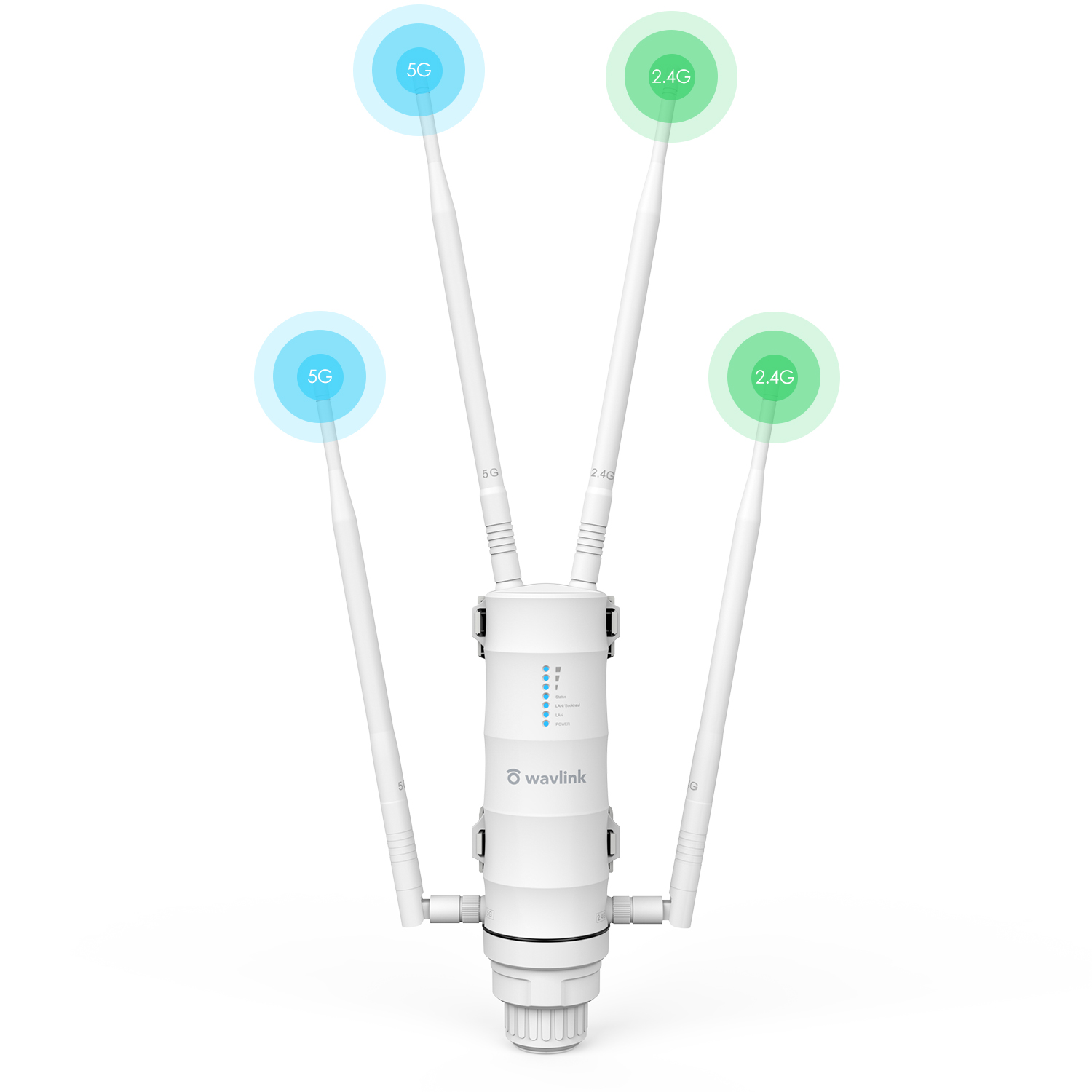
- Antennas: Extenders with high-gain external antennas generally provide better directionality and range than those with small internal antennas. Positionable antennas allow you to fine-tune the signal direction.
- Extender Quality: A $20 extender from a no-name brand will almost certainly perform worse (in range and stability) than a well-reviewed $80-$100 model from Netgear, TP-Link, ASUS, WAVLINK,etc.
The Verdict: Think of an extender as effectively doubling the distance you can reliably get a usable signal in a straight line with minimal obstacles from your router's current limit. If your router barely reaches the kitchen doorway, a well-placed extender should reliably cover the kitchen table and maybe the back patio just outside. It's not magic; it's physics with some clever engineering.
(Continued Below - FAQs and the Final Word!)
WiFi Extender FAQs: Your Burning Questions Answered
-
Q: Does a WiFi extender slow down the internet?
- A: Yes, but the degree varies. Remember the "half-duplex" limitation? Speeds for devices connected through the extender will be lower than devices connected directly to the router. How much slower depends on the extender's own connection strength/speed to the router. Wired backhaul eliminates this slowdown.
-
Q: Extender vs. Mesh WiFi: Which is better?
- A: Mesh systems are generally superior but more expensive.
- Extender: Cheaper, simpler setup (usually). Performance can be inconsistent, creates separate network(s), speed penalty.
- Mesh: Multiple units work together seamlessly. Single network name, devices roam automatically between nodes. Better performance and coverage, especially with dedicated backhaul radios/channels. Often easier app management. Ideal for larger homes or tricky layouts. Good mesh systems start around $200+.
- A: Mesh systems are generally superior but more expensive.
-
Q: Can I use multiple WiFi extenders?
- A: Technically, yes. But it's strongly discouraged. Daisy-chaining extenders (extender connected to extender connected to router) exponentially worsens the speed penalty and latency (lag). Performance becomes awful. If you need more than one extender, seriously consider a Mesh system instead.
-
Q: What's the best place to put a WiFi extender?
- A: REPEAT AFTER ME: Where it gets a strong signal from the router, but can effectively broadcast into the dead zone. Use the placement test method described earlier! Avoid physical obstructions and interference sources. Near the ceiling can sometimes help for multi-story coverage.
-
Q: Do I need a special extender for my router brand?
- A: Generally, no. WiFi extenders work using universal WiFi standards. A TP-Link extender will work with a Netgear router and vice-versa. Compatibility issues are rare.
-
Q: Why is my extender connection unstable/dropping?
- A: Common culprits:
- Poor Location: The #1 reason! The extender itself isn't getting a stable signal from the router. Try moving it closer.
- Interference: Move it away from other electronics.
- Overheating: Ensure vents aren't blocked.
- Outdated Firmware: Check the extender's admin page or manufacturer's website for updates.
- Cheap/Overloaded Extender: Older or low-quality extenders struggle with multiple devices or high bandwidth.
- A: Common culprits:
-
Q: How far can a WiFi extender reach outside?
- A: Outside distances are tricky due to lack of walls to bounce signals. Expect significantly reduced range compared to indoors. Weather can also affect it. For reliable backyard coverage, place the extender as close as possible to an exterior wall facing the yard, ideally near a window. Consider an outdoor-rated extender for sheds/detached garages.
The Final Word: Conquering Your WiFi Dead Zones
WiFi extenders aren't perfect, but they're a practical, affordable solution for millions struggling with frustrating dead zones. Understanding how they work – repeating and amplifying your existing signal – is key to setting them up successfully. Remember the golden rule: placement is everything. Spend the time finding that sweet spot halfway between your router and the dead zone. Manage expectations about speed (thanks, half-duplex!), minimize interference, and consider wired backhaul if possible.
For most standard homes tackling a stubborn weak spot in a bedroom, basement, or backyard, a well-placed extender can be a total game-changer, transforming that spinning circle of doom into smooth streaming bliss. Now go forth and banish those dead zones! Your Netflix queue in the hammock awaits.
Still have questions? Drop them in the comments below!